

How it works
- You create an invoice with /v2/invoices/create (see Create an invoice). The response contains the invoice URL.
- You send the URL to your customer.
- The customer opens the invoice page. They see the invoice title, amount and currency, and, depending on the invoice type, a timer, a choice of payment currency, or the amount and currency to pay.
- The customer pays to the address shown on the page, before the timer runs out. The address is generated by CryptoProcessing.
- You receive a callback each time the invoice changes.
- Once the payment is confirmed, the funds are converted to the invoice currency and added to your balance, and you’re charged an invoice fee.
If the customer is a legal entity, they will be prompted for their company’s name and registration country. If the customer is a natural person, they will be prompted for their first and last names, as well as their email. CryptoProcessing collects this data in compliance with local regulations. For more details, see User data collection.
Invoice types
The parameters you send decide the invoice type:
Separately, the
type parameter makes the invoice a standard or a partial pay invoice.
Invoice without a timer
The customer chooses which cryptocurrency they want to pay in, without a time restriction. The currency they choose is converted automatically to the invoice currency. When the customer follows the link, they see the invoice details and are asked to choose their payment currency. Once they click Continue, they’re prompted for their personal data in compliance with local regulations.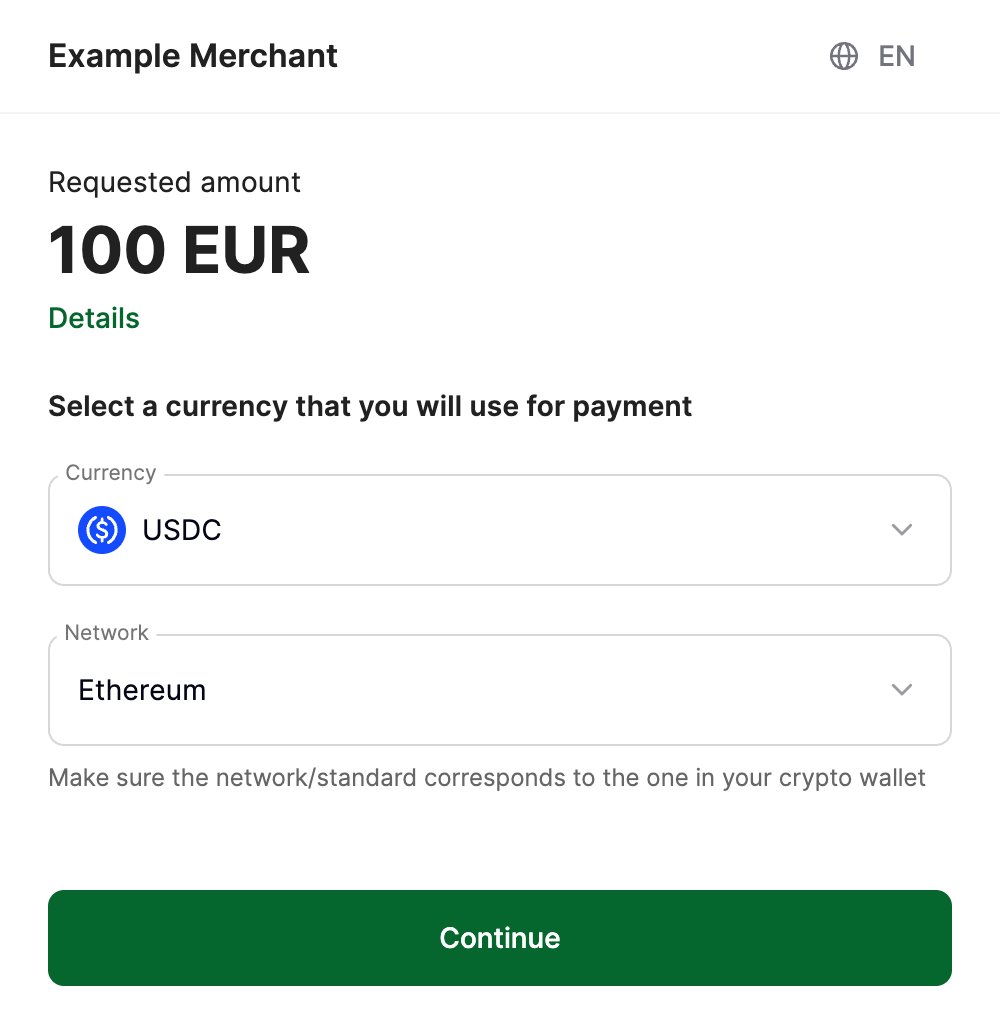 | 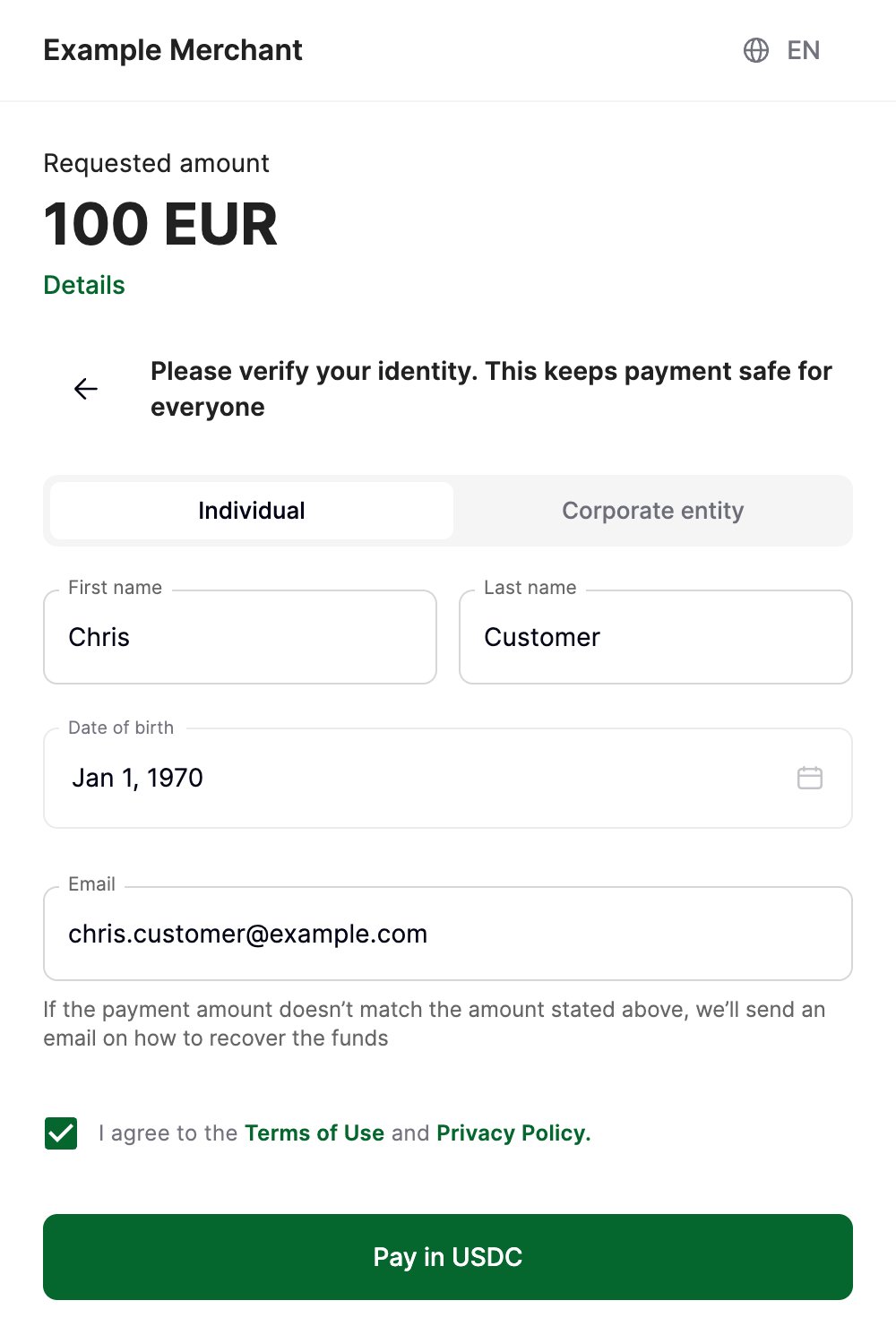 |
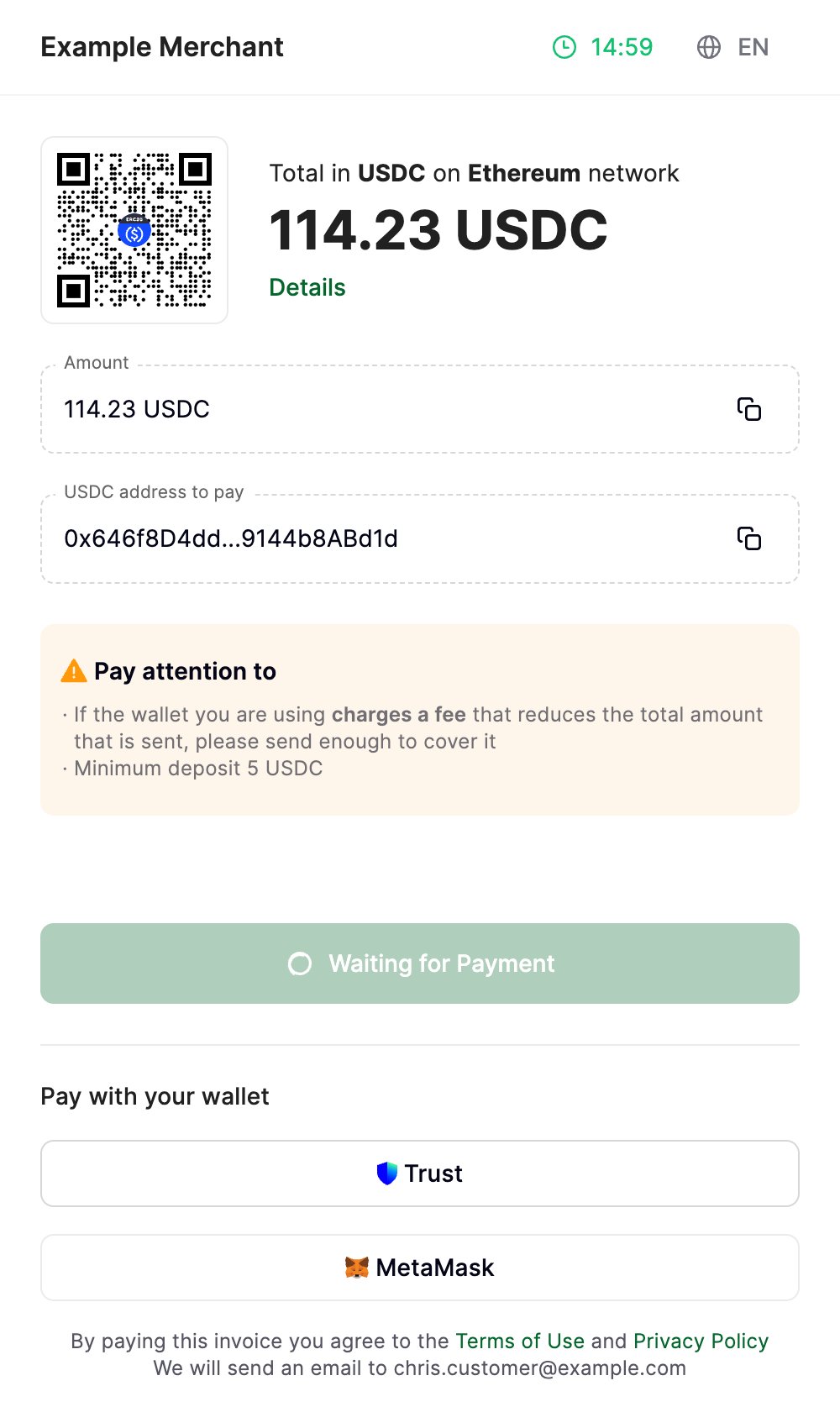
Invoice with a timer
The customer chooses the payment currency themselves, but has 15 minutes from the invoice’s creation to pay. When the customer follows the link, they see the invoice details and the timer, and choose the payment currency. The rate is fixed when they choose it. The timer still counts from the invoice’s creation and isn’t reset. Once the customer has chosen the payment currency, they’re prompted for their personal data in compliance with local regulations. After that, they have to pay the invoice using the address shown, before the timer runs out.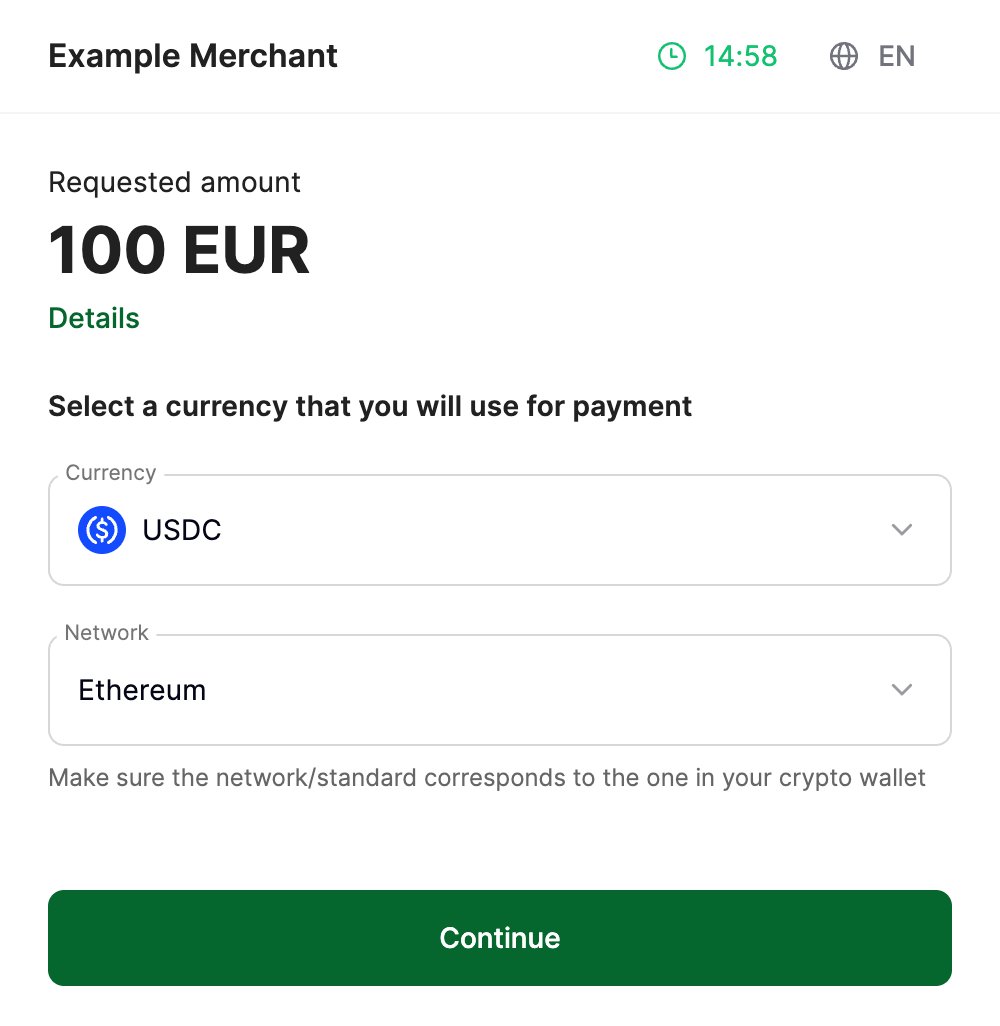 | 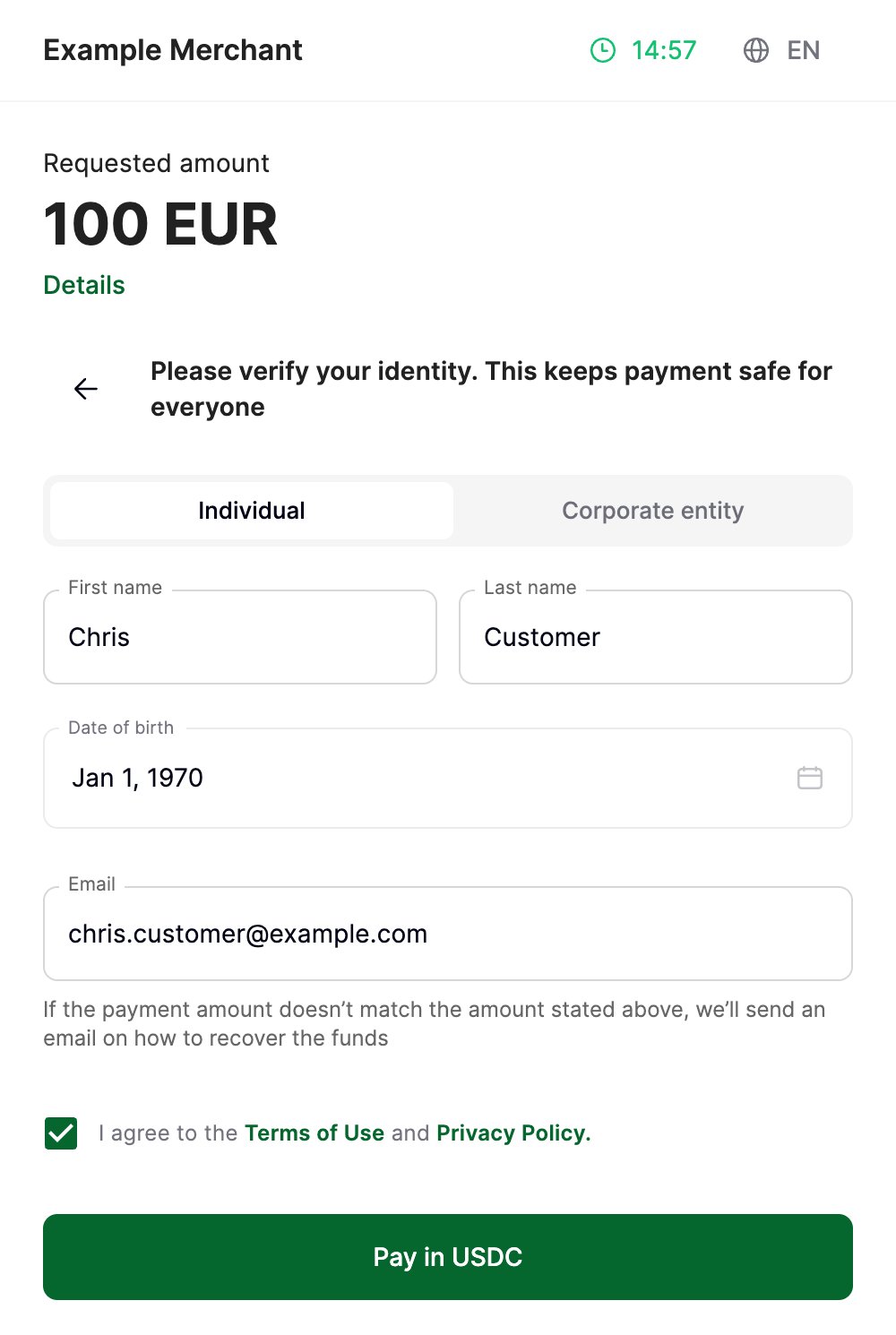 |
Invoice with a timer and a pre-selected currency
You set the payment currency (sender_currency), and the customer has 15 minutes from the invoice’s creation to pay.
When the customer follows the link, they see the invoice details, the 15-minute timer, and the amount and currency to pay. They have to pay the invoice using the address shown, before the timer runs out.
Partial pay invoices
A partial pay invoice can be paid in instalments, and you receive a callback for each payment. If it’s only partly paid when it expires, it’s confirmed for the amount received, and that amount, minus the fee, is added to your balance. If a standard invoice is only partly paid when it expires, it fails, and the payment isn’t added to your balance. See When an invoice fails.Invoice statuses
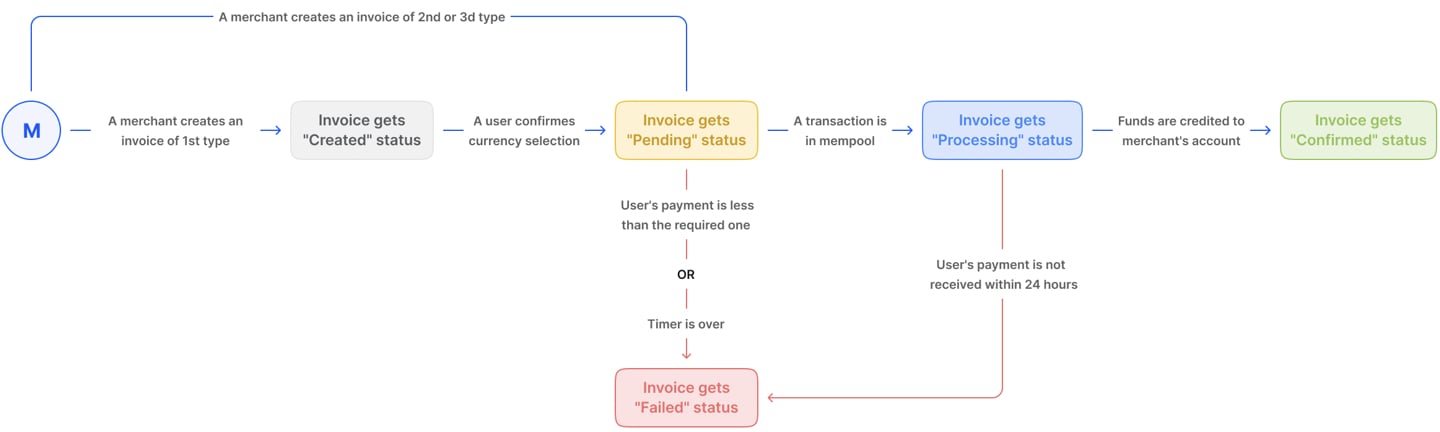
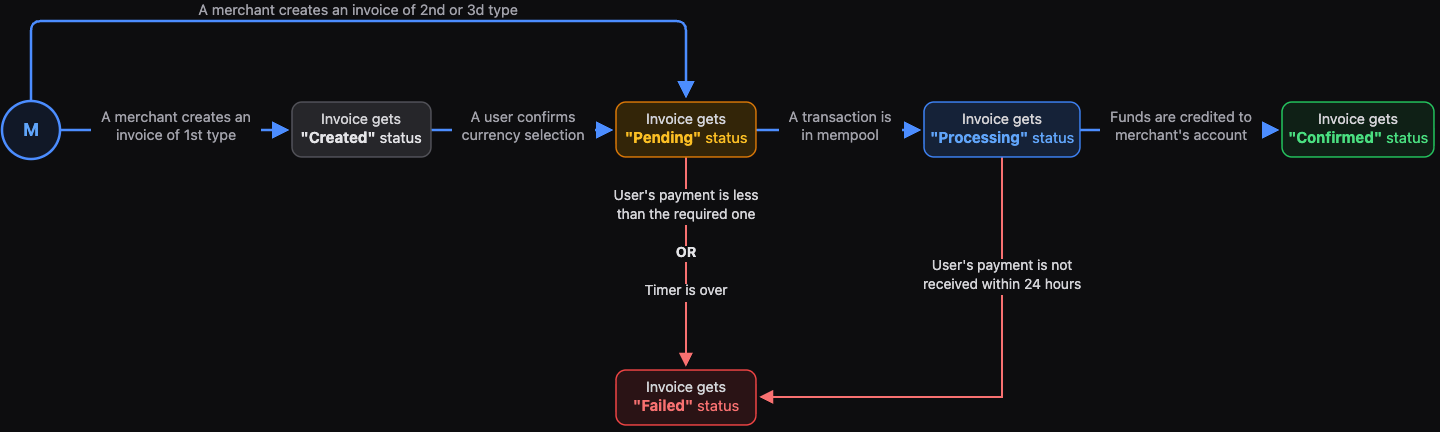
- Created: an invoice without a timer, before the customer has chosen a payment currency.
- Pending: the invoice is waiting for payment, or has been partly paid and is waiting for the rest.
- Processing: the full amount has been detected, but the payment isn’t final yet.
- Confirmed: the invoice has been paid in full, or it’s a partial pay invoice that expired after a partial payment.
- Failed: the invoice won’t be completed (see below).
When an invoice fails
An invoice fails when any of the following happens:- The 15-minute timer runs out before the invoice is paid.
- The transaction stays in the Processing status for more than 24 hours.
- The customer paid less than the invoice amount (standard invoices only; a partial pay invoice is confirmed for the amount received). In this case the transaction has the Confirmed status, but the invoice has the Failed status.
Callbacks
You receive a callback whenever the invoice changes:- when an invoice with a timer is created
- when the customer chooses a payment currency and the rate is fixed
- for each partial payment
- once the full amount is detected, before the payment is final
- when the invoice is confirmed or fails
- when another payment arrives after the invoice was confirmed or failed (its status doesn’t change)
expires_at moves to 24 hours after the payment.
For an example of each callback, see Invoice callbacks.
Emails and refunds
The customer gets an email when the invoice is paid. When a payment doesn’t match the invoice, they get a separate email with a link to claim a refund:- An overpayment: a refund of the excess. The customer also gets the email about the paid invoice.
- An underpayment of a standard invoice: a refund of the whole payment, once the invoice fails.
- A payment after the invoice has expired or failed, or a payment to an invoice you cancelled: a refund of the whole payment.
Create an invoice
To create an invoice, use the /v2/invoices/create endpoint. Every request needs two identifiers:end_user_reference: a persistent identifier of the customer in your system that doesn’t change between operations.foreign_id: a unique identifier of the invoice. Each request must use a differentforeign_id.
email_user is filled in for them on the invoice page.
Cancel an invoice
To cancel an invoice, use the /v2/invoices//cancel endpoint. You can only cancel invoices while they have the Created, Pending or Processing status. Invoices that have the Confirmed or Failed status can’t be cancelled. When you cancel an invoice:- The invoice status changes to Failed.
- You get a callback with the
Cancelled by customer.error message, and another one if a payment is confirmed after the cancellation. - If the customer has already paid, in full or in part, the payment isn’t added to your balance, even if it’s confirmed after the cancellation. The customer gets an email with a link to claim a refund of it (unless the amount is too small to refund, see Emails and refunds).